Understanding Hard Drive Failures
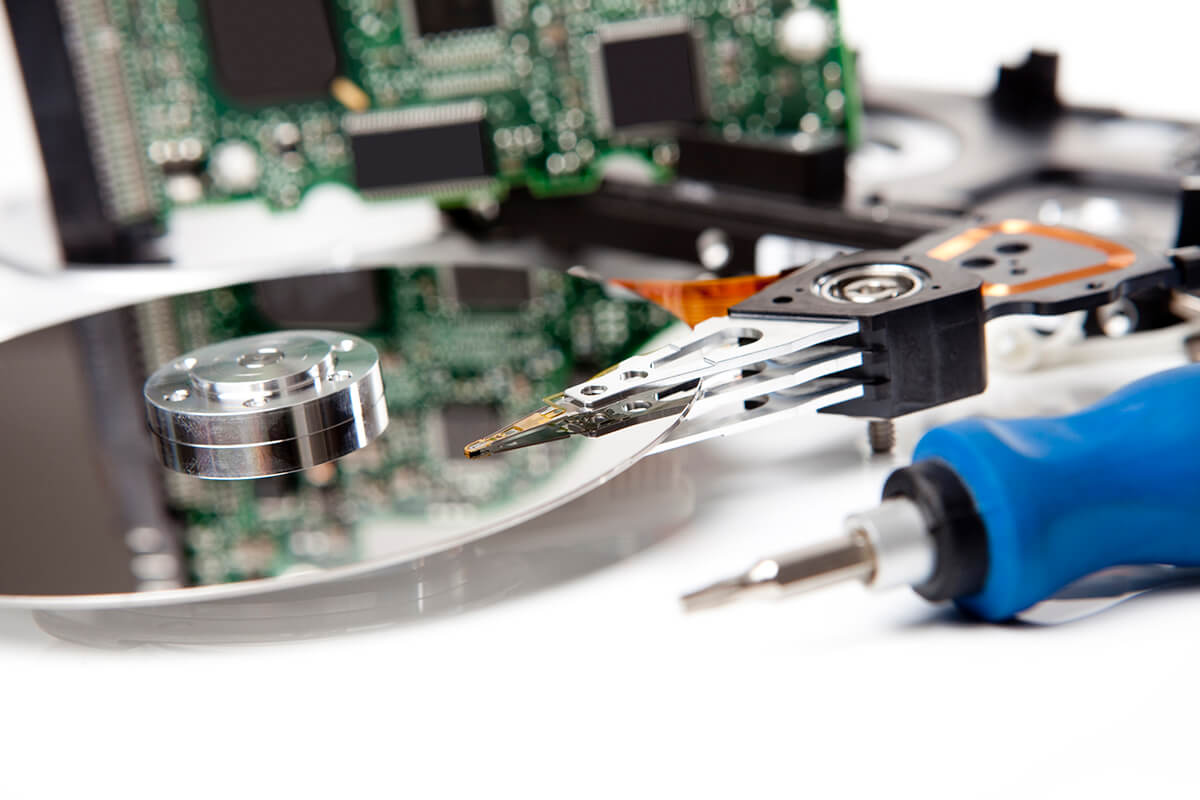
Hard drives, whether traditional HDDs or modern SSDs, have a limited lifespan. Over time, they may develop faults, suffer from physical damage, or become corrupted due to software issues. Recognizing early warning signs and taking proactive measures can prevent permanent data loss.
Warning Signs That Indicate a Failing Hard Drive
If you notice any of the following symptoms, you should consider data recovery immediately:
- Frequent Crashes or Freezing: Your system may frequently freeze, crash, or show the dreaded “blue screen of death.”
- Unusual Noises: Clicking, grinding, or buzzing sounds often indicate mechanical failure in HDDs.
- Slow Performance: A sudden decrease in speed when opening files or transferring data may point to bad sectors.
- Corrupted Files: If files become inaccessible or display errors when opened, your drive may be failing.
- Disappearing Data: Missing files or folders without deletion may signal corruption or damage.
- Failure to Boot: If your operating system fails to start, it could be due to disk failure.
- Error Messages: Messages like “disk not recognized” or “corrupt disk” suggest impending failure.
Immediate Actions to Prevent Data Loss
If you suspect your hard drive is failing, follow these steps to protect your data:
- Stop Using the Drive – Avoid writing new data to the drive to prevent overwriting recoverable files.
- Back Up Immediately – If the drive is still accessible, move essential files to a secure location.
- Use an External Enclosure – If the primary computer is damaged, remove the hard drive and use an external enclosure to access files from another device.
- Try Safe Mode or BIOS Access – Booting into Safe Mode or BIOS may help you retrieve data if the system is failing but not completely inaccessible.
- Run a Health Check – Use tools like CrystalDiskInfo to check the drive’s health status.
Data Recovery Methods
1. Manual Recovery Techniques
a) Checking the Recycle Bin
Before trying complex solutions, check the Recycle Bin for accidentally deleted files.
b) Using a Live USB or External OS
If your system fails to boot, a Linux Live USB can help access and recover data before complete failure.
2. Data Recovery Software
When files are lost due to accidental deletion, formatting, or corruption, software solutions can help:
- Recuva – User-friendly tool for recovering recently deleted files.
- Disk Drill – Advanced software with Quick and Deep Scan options.
- Microsoft File Recovery – Official Windows tool for retrieving lost files.
3. Professional Data Recovery Services
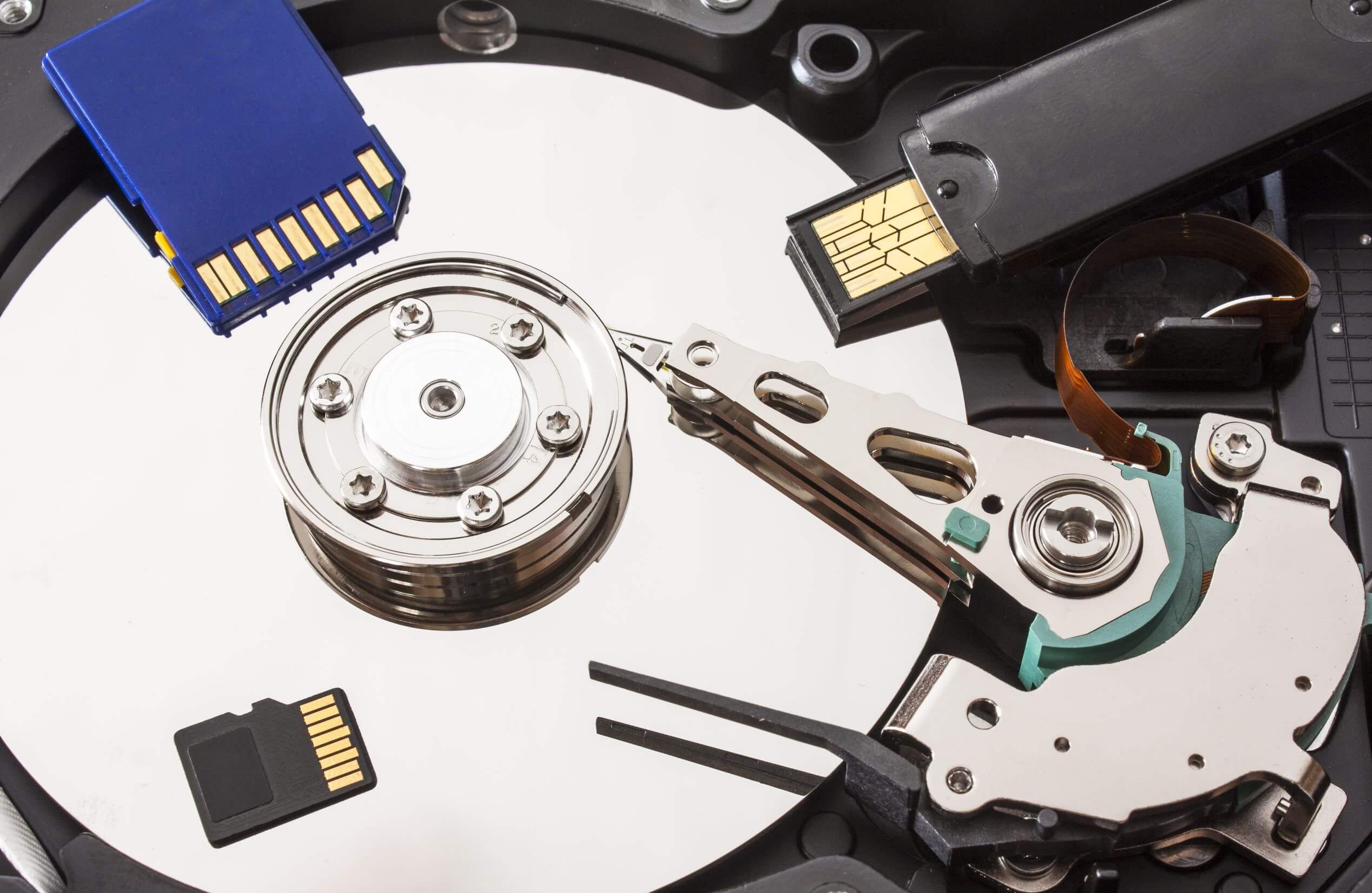
If software fails or your drive suffers physical damage, professional services may be necessary. Data recovery companies use specialized equipment and techniques to extract data from damaged drives. Consider professional help when:
- The drive makes unusual noises (clicking, grinding).
- The system does not recognize the drive.
- The drive is physically damaged due to fire, water, or impact.
How to Select a Data Recovery Company
When choosing a data recovery service, consider:
Customer Reviews – Check online reviews and testimonials.
Certifications and Expertise – Look for certifications like ISO 9001 for quality assurance.
Experience – Choose a company experienced in handling your specific type of drive.
No Data, No Fee Policy – Ensure they charge only if recovery is successful.
Security and Confidentiality – Verify their data privacy policies.
Preventing Future Data Loss
To reduce the risk of data loss in the future, follow these best practices:
- Regular Backups: Use external drives or cloud storage solutions like Google Drive or OneDrive.
- Enable Automatic Backup Features: Both Windows and macOS offer built-in backup options.
- Use a Surge Protector: Protects your system from power surges that can damage storage devices.
- Monitor Drive Health: Use S.M.A.R.T. monitoring tools to detect issues early.
- Avoid Physical Damage: Handle drives carefully and protect against drops and shocks.
Conclusion
Recognizing the early signs of hard drive failure and taking prompt action can make the difference between recovering lost data and permanent loss. Whether using software solutions or professional recovery services, it’s crucial to act quickly and implement preventive measures to safeguard valuable files. By maintaining regular backups and monitoring drive health, you can ensure the longevity and security of your data.