
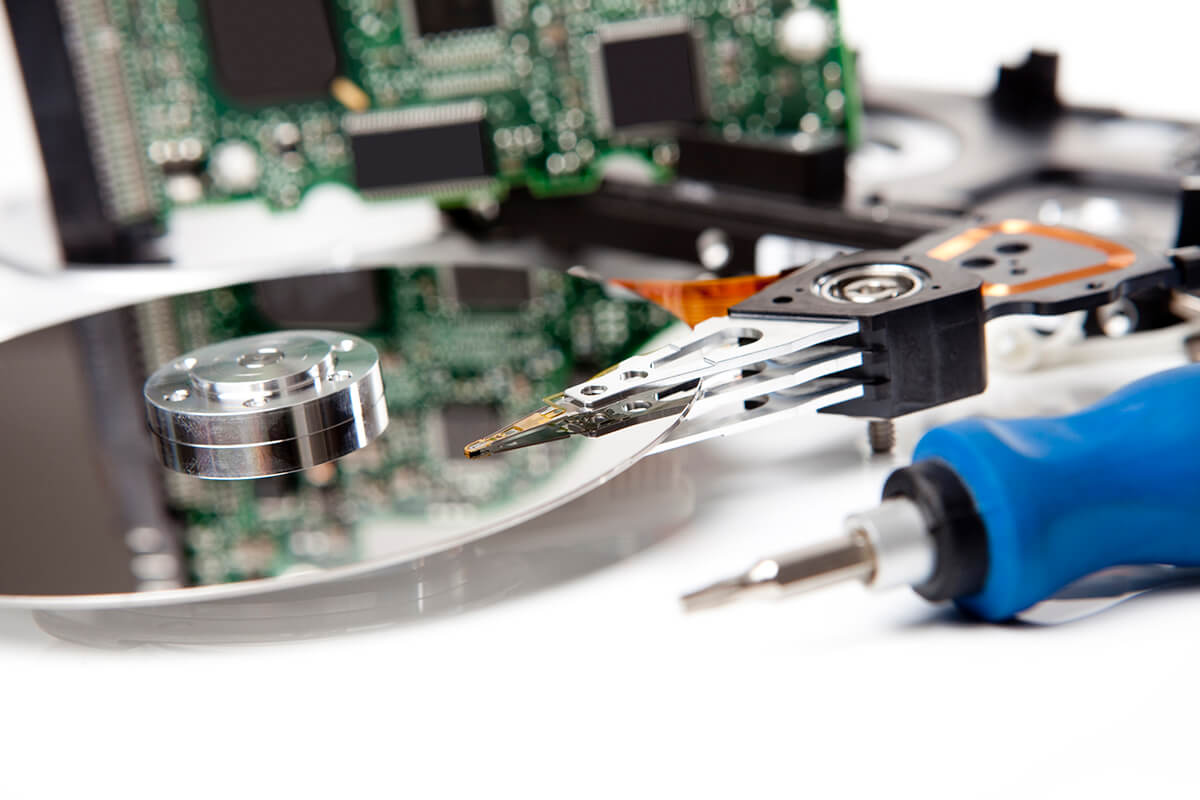
Hard drives are an essential part of our digital lives, storing everything from important work documents to cherished family photos. However, they don’t last forever. Mechanical failure, accidental deletion, software corruption, and physical damage can all lead to data loss. When should you start considering data recovery? The answer is as soon as you notice any warning signs of a failing hard drive. Acting quickly can maximize your chances of retrieving lost data and preventing permanent loss.
Understanding Hard Drive Lifespan and Failures
A hard drive’s lifespan depends on multiple factors, including usage, environmental conditions, and the quality of the drive itself. On average:
- Traditional HDDs (Hard Disk Drives) last between 3 to 5 years under normal use.
- SSDs (Solid State Drives) can last 5 to 10 years, but their NAND flash memory wears out over time.
Common Causes of Hard Drive Failure
Several issues can lead to data loss, including:
- Mechanical Failure: Hard drives have moving parts that wear out over time.
- Electronic Failure: Power surges or electrical malfunctions can render a drive unreadable.
- Firmware Corruption: Internal software glitches can cause drive failure.
- Physical Damage: Drops, shocks, and liquid exposure can severely damage a drive.
- Malware and Viruses: Ransomware, trojans, and other threats can corrupt files or lock access to data.
- Accidental Deletion and Formatting: Mistakenly deleting files or formatting a drive can erase critical data.
Signs You Need Data Recovery
If you experience any of the following symptoms, it’s time to consider data recovery:
1. Strange Noises from the Hard Drive
- Clicking, grinding, or beeping sounds can indicate a mechanical issue with an HDD.
- SSDs don’t have moving parts, but they can fail silently due to memory degradation.
2. Frequent System Crashes or Freezes
- If your computer regularly freezes or crashes when accessing files, your hard drive may be struggling.
- Delayed boot times and blue screen errors could be signs of imminent failure.
3. Corrupted or Inaccessible Files
- If previously accessible files suddenly won’t open or are corrupted, data recovery may be necessary.
- Error messages such as “File System is RAW” or “Drive is not accessible” indicate corruption.
4. Hard Drive Not Recognized by the Computer
- If your computer fails to detect the drive, it could be due to firmware issues or physical damage.
5. Accidental Deletion or Formatting
- If you accidentally delete files or format a drive, stop using it immediately to avoid overwriting the data.
Steps to Take Before Attempting Data Recovery
1. Stop Using the Drive Immediately
- Continuing to use a failing hard drive increases the risk of permanent data loss.
- Avoid saving new files, as this can overwrite lost data.
2. Check External Connections
- If using an external hard drive, try different USB ports and cables to rule out connectivity issues.
3. Use a Different Computer
- If possible, connect the hard drive to another computer to see if it is accessible.
4. Make a Clone of the Drive
- Creating a clone or image of the failing drive can protect your data and allow for safer recovery attempts.
Data Recovery Methods
1. DIY Data Recovery Software
If the drive is still detectable but files are missing, data recovery software may help. Some popular tools include:
- Recuva: Free and user-friendly tool for recovering deleted files.
- Disk Drill: Offers deep scan recovery and up to 500MB free data recovery.
- EaseUS Data Recovery Wizard: Suitable for recovering files lost due to accidental deletion, formatting, or system crashes.
- R-Studio: Advanced tool for handling complex data recovery tasks.
2. Using a Hard Drive Enclosure
If your computer is unable to access the hard drive directly, you can:
- Remove the drive from the computer and place it in an external hard drive enclosure.
- Connect it to another computer via USB to attempt recovery.
3. Data Recovery from RAW Hard Drives
If your drive has become RAW (unformatted), do not format it. Instead, use:
- TestDisk: A free tool to recover lost partitions and fix RAW drives.
- MiniTool Partition Wizard: Can help convert RAW drives back to NTFS without formatting.
4. Professional Data Recovery Services
If software solutions fail or if the drive has physical damage, professional recovery services are your best option. Experts can retrieve data using specialized equipment in a controlled environment.
How to Choose a Data Recovery Service
1. Verify Their Credentials
Look for companies with:
- Certifications from organizations like ISO 9001 for quality assurance.
- Expertise in handling different types of hard drives (HDDs, SSDs, RAID systems, etc.).
2. Check Customer Reviews
- Look at online reviews and testimonials to assess their reputation.
3. Understand Pricing and Policies
- Many companies offer a free evaluation but charge for successful recovery.
- Ensure there are “no data, no charge” policies to avoid paying for unsuccessful attempts.
4. Look for Secure Data Handling Practices
- Ensure they comply with GDPR and HIPAA if recovering sensitive data.
- Check whether they offer secure shipping and handling options for your device.
Preventing Future Data Loss
1. Regular Backups
- Use cloud storage (Google Drive, Dropbox) or external drives for backups.
- Enable automatic backups on Windows (File History) or Mac (Time Machine).
2. Use an Uninterruptible Power Supply (UPS)
- Protect your computer from power surges and sudden shutdowns.
3. Install Antivirus Software
- Prevent malware and ransomware from corrupting or encrypting your data.
4. Monitor Hard Drive Health
- Use tools like CrystalDiskInfo to check hard drive health regularly.
Conclusion
Data loss can happen unexpectedly, but recognizing the early warning signs can make a huge difference in recovery success. Whether you choose DIY software or professional recovery services, acting fast and following best practices can help protect your valuable data. More importantly, implementing a solid backup strategy will ensure that even if disaster strikes, your files remain safe and accessible.
If your hard drive starts exhibiting signs of failure, don’t wait—consider data recovery options immediately to avoid permanent data loss.