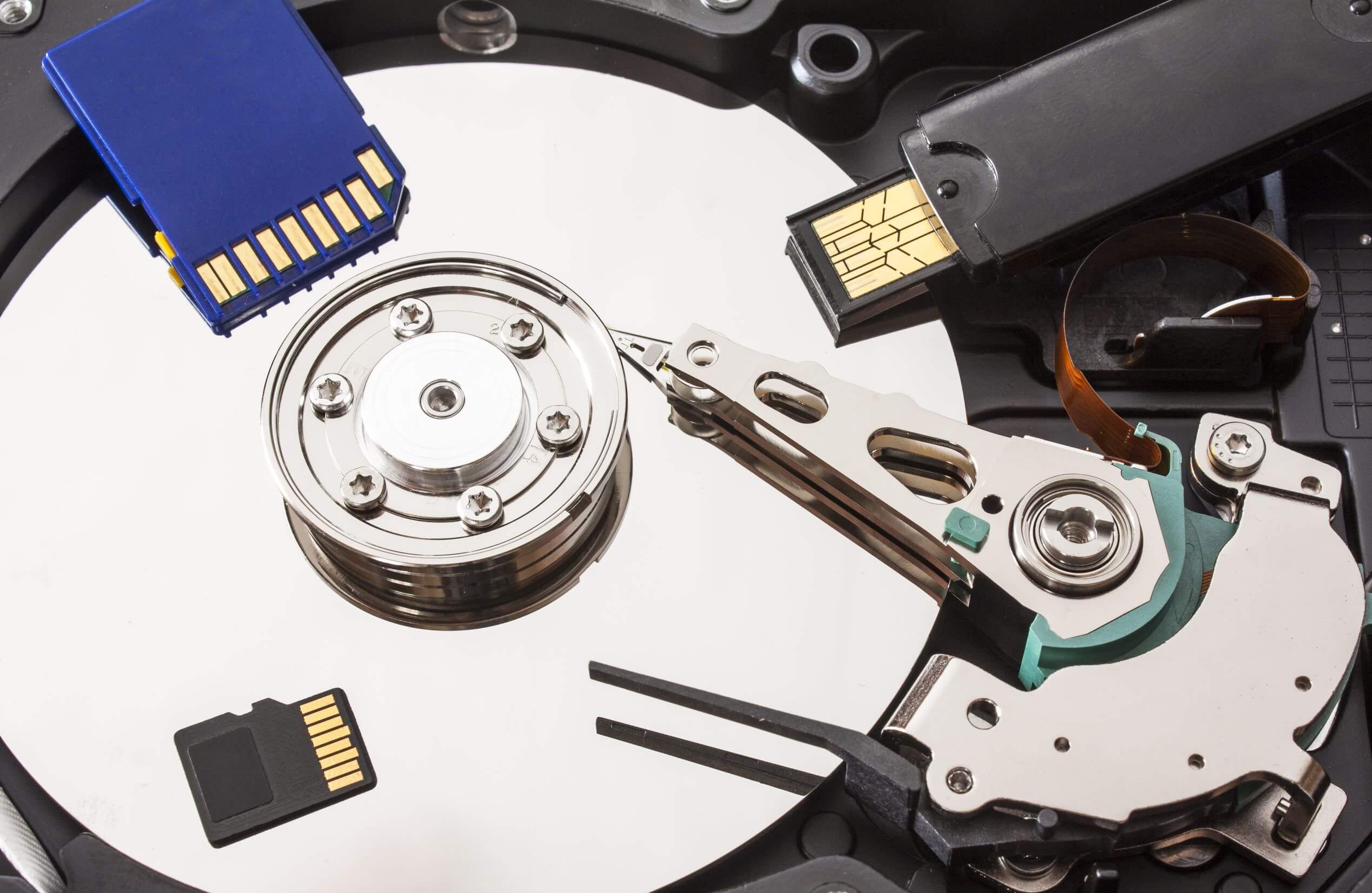

Data loss can happen to anyone, whether due to accidental deletion, hardware failure, malware attacks, or system crashes. Fortunately, data recovery software for Windows provides a solution to recover lost files efficiently. This guide explores some of the best data recovery software options available, their features, and expert tips for maximizing recovery success.
Best Data Recovery Software for Windows
1. Disk Drill for Windows
Disk Drill is one of the most reliable and user-friendly data recovery tools available for Windows. It offers a free trial version that allows users to recover up to 500MB of data.
Key Features:
- Quick Scan for recently deleted files.
- Deep Scan for reconstructing lost files.
- Recovery Vault feature for added data protection.
- Byte-level backup for safer data recovery from failing drives.
- Intuitive interface for beginners and advanced users alike.
2. EaseUS Data Recovery Wizard
EaseUS Data Recovery Wizard is a well-known software that offers a simple yet powerful recovery process.
Key Features:
- Supports recovery from hard drives, SSDs, USB drives, and SD cards.
- Can recover files lost due to formatting, partition loss, or crashes.
- Free version allows recovery of up to 2GB of data.
- Preview files before recovery to ensure integrity.
3. Recuva
Recuva is a lightweight and effective data recovery tool designed for retrieving accidentally deleted files.
Key Features:
- Deep Scan feature to locate lost files more thoroughly.
- Secure overwrite feature to permanently delete sensitive files.
- Supports recovery from external storage devices.
- Completely free basic version available.
4. R-Studio
R-Studio is a professional-grade data recovery software designed for IT professionals and businesses.
Key Features:
- Supports all major file systems (NTFS, FAT, exFAT, ReFS, APFS, HFS+, etc.).
- Advanced recovery options for RAID and network-based systems.
- Hexadecimal disk editing for complex recovery scenarios.
- Designed for both individual users and enterprise-level recovery needs.
5. MiniTool Power Data Recovery
MiniTool Power Data Recovery is an all-in-one recovery solution with an easy-to-use interface.
Key Features:
- Recovers lost data from HDDs, SSDs, USB drives, and CDs/DVDs.
- Free version allows recovery of up to 1GB of data.
- Quick and deep scanning modes available.
- Supports file preview before recovery.

How to Use Data Recovery Software Effectively
Step 1: Stop Using the Affected Drive
As soon as you notice data loss, stop using the drive immediately to prevent overwriting deleted files.
Step 2: Choose the Right Recovery Software
Depending on your data loss situation, select a tool that best suits your needs. If files were recently deleted, Quick Scan may be enough. For more severe cases, Deep Scan or professional tools may be required.
Step 3: Install and Run the Software
Download and install the software on a different drive (not the affected one). Follow the on-screen instructions to begin the scanning process.
Step 4: Scan for Lost Data
Use Quick Scan for fast recovery or Deep Scan for a more comprehensive search.
Step 5: Preview and Recover Files
Once the scan is complete, preview the recoverable files and restore them to a safe location (not the original drive).
Step 6: Backup Important Data
To prevent future data loss, always maintain regular backups using external drives or cloud storage solutions.
Preventing Data Loss: Best Practices
- Enable File History or System Restore: Windows has built-in recovery options that can help restore lost data.
- Use Cloud Storage: Services like Google Drive, OneDrive, or Dropbox automatically back up files.
- Keep a Backup Drive: External hard drives or SSDs can serve as reliable backup options.
- Install Antivirus Software: Protect your system from malware that can corrupt or delete files.
- Monitor Hard Drive Health: Use tools like CrystalDiskInfo to check for early signs of drive failure.
Conclusion
Losing important files can be a frustrating experience, but with the right data recovery software, you can successfully restore your lost data. Whether you’re a home user looking for a simple solution like Disk Drill or an IT professional needing an advanced tool like R-Studio, there is a recovery software option for every situation.
To minimize the risk of data loss, always maintain backups, use secure storage methods, and take preventative measures to keep your files safe.