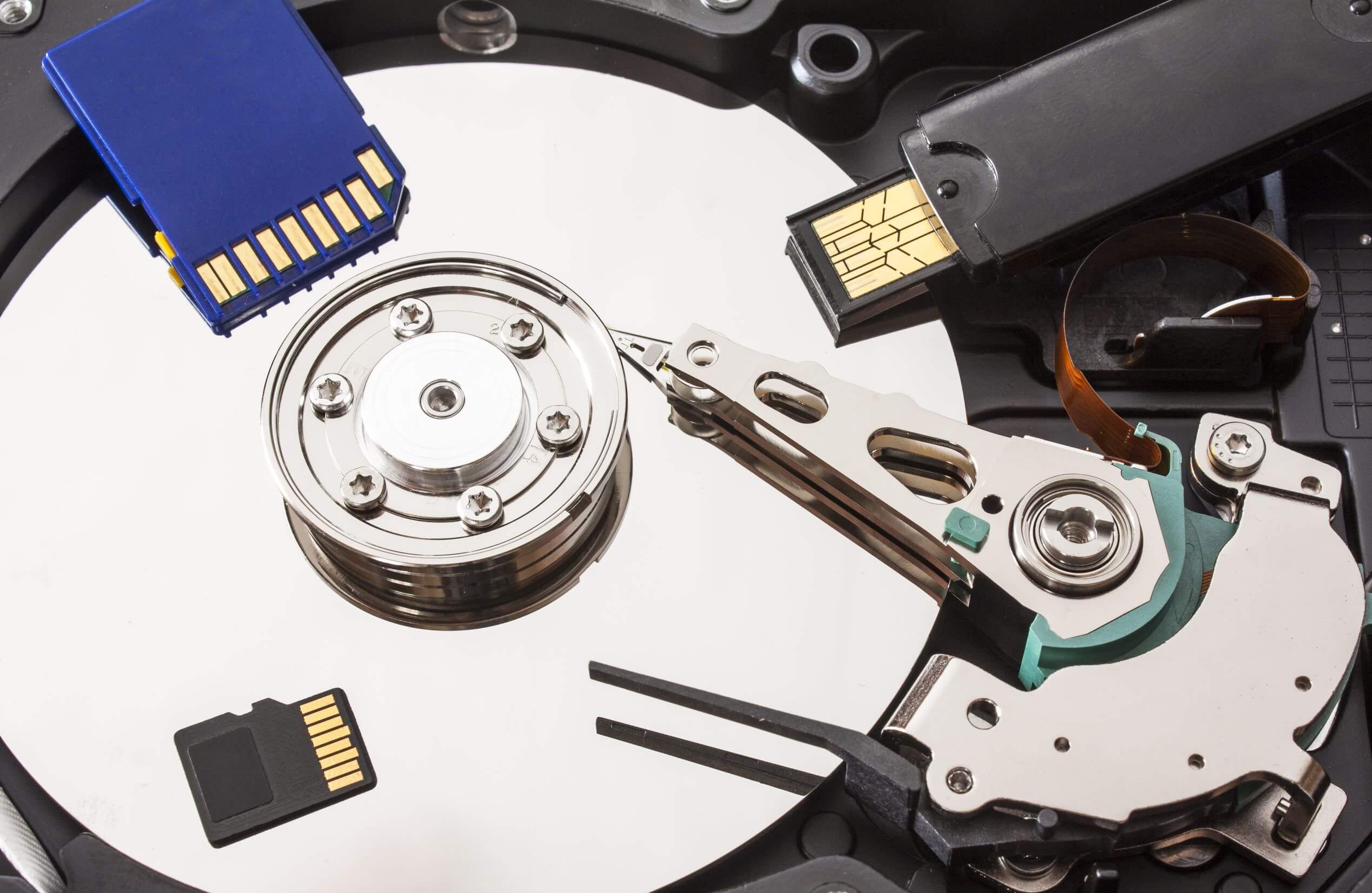

Hard drives are the silent workhorses of our digital lives, quietly storing years of data, documents, photos, and critical system files. But like any mechanical or electronic device, they are not immune to wear and failure. Knowing the early warning signs of a failing hard drive can mean the difference between simple preventative action and devastating data loss.
In this article, we explore the top seven signs that your hard drive may be on the verge of failure—and what immediate and long-term steps you should take to safeguard your data and maintain system integrity.
1. Unusual Noises: Clicking, Grinding, or Whirring
One of the most recognized indicators of a failing hard drive is unusual mechanical noise. Clicking sounds—often referred to as the “click of death”—typically indicate that the drive’s read/write head is malfunctioning or struggling to find the data tracks. Grinding or high-pitched whirring can point to deteriorating bearings or motor issues.
What to Do:
- Immediately back up any accessible data.
- Do not attempt DIY repairs, especially if noises are present.
- Consult a professional data recovery service if the drive becomes inaccessible.
2. Sluggish Performance and System Freezes
If you notice that your system is slowing down significantly, particularly during file transfers or software access, this may indicate that your hard drive is struggling to read data. Frequent system crashes, freezes, or blue screens—especially when opening large files—can be a red flag.
What to Do:
- Run SMART diagnostic tools (e.g., CrystalDiskInfo) to check drive health.
- Backup essential files immediately.
- Consider replacing the drive if performance continues to degrade.
3. Corrupted Files or Missing Data
When files that previously opened without issue suddenly become corrupted, inaccessible, or disappear altogether, the underlying drive may be experiencing sector failure. Bad sectors—portions of the disk that can no longer reliably hold data—are common in aging hard drives.
What to Do:
- Avoid writing new data to the drive, which may exacerbate the issue.
- Use data recovery software cautiously if the data is still partially accessible.
- Seek professional help for recovery before reformatting or replacing the drive.
4. Frequent Error Messages During File Access or Boot
Errors like “File Not Found,” “Drive Not Recognized,” or warnings about corrupt directories are often symptomatic of failing storage. If your operating system struggles to boot or throws filesystem errors regularly, the integrity of your hard drive may be compromised.
What to Do:
- Document any specific error codes for technical support reference.
- Use the CHKDSK command (Windows) or Disk Utility First Aid (macOS) to check for filesystem issues.
- Back up data and consider cloning the drive to prevent total data loss.
5. Drive Not Detected by BIOS or Operating System
If your hard drive intermittently disappears from your system, fails to be recognized during boot, or is no longer listed in Disk Management, the failure may be imminent. This can be caused by damaged circuit boards, cable issues, or deeper internal mechanical failure.
What to Do:
- Try reconnecting the drive with a new SATA or USB cable.
- Test it in another system to rule out motherboard issues.
- If still undetected, stop using the drive and contact a recovery specialist.
6. Overheating or Unusual Heat Emission
Excessive heat coming from your hard drive or unusually high internal temperatures can signal that mechanical parts are under strain or that the drive is close to mechanical failure. Overheating may also stem from poor airflow or a failing power supply.
What to Do:
- Monitor drive temperature using software tools like HWMonitor or Open Hardware Monitor.
- Improve airflow in your PC case or external drive enclosure.
- Replace the drive if it consistently overheats under normal usage conditions.
7. S.M.A.R.T. Errors and Diagnostic Warnings
S.M.A.R.T. (Self-Monitoring, Analysis and Reporting Technology) is built into most modern hard drives and is designed to detect signs of impending failure. If your computer issues a S.M.A.R.T. warning at startup or during a scan, it should not be ignored.
What to Do:
- Perform a full diagnostic scan using the manufacturer’s utility (e.g., Seagate SeaTools, Western Digital Data Lifeguard).
- Plan to replace the drive even if it’s still operational.
- Migrate all important data as soon as possible.
Next Steps: What You Should Do Now
If your hard drive is displaying any of the signs listed above, take immediate action:
1. Backup Your Data
Make a full backup of all critical files to an external hard drive or cloud storage. Use backup software or perform a manual copy of essential folders.
2. Stop Using the Drive If It’s Failing
Continuing to use a drive that is deteriorating increases the likelihood of permanent data loss. If the drive is making noises or data is already inaccessible, power it down.
3. Consult a Professional Data Recovery Service
In cases of physical damage, or when important data is inaccessible, turn to a certified data recovery specialist. Attempting to open the drive yourself can cause irreparable damage.
4. Replace the Drive
Once your data is secure, replace the faulty drive with a new one. If possible, consider switching to a solid-state drive (SSD) for greater reliability and performance.
Conclusion
Hard drive failure is not a matter of “if” but “when.” These devices, especially traditional HDDs, have finite lifespans due to their mechanical nature. Recognizing early warning signs and acting swiftly can preserve your data and save you from costly downtime or irreversible loss. Regular backups, system monitoring, and proactive maintenance are your best defenses against catastrophic storage failure.